Hi @Everyone,
How Claude works inside Chrome and writes Pine Script for you in auto mode, with no coding on your side
Introduction
Building a custom TradingView indicator or strategy used to mean learning Pine Script, typing code into the Pine Editor, and fighting compile errors one by one. That is no longer necessary.
With Claude in Chrome, Claude works directly inside your browser, right next to your TradingView chart. You tell it what you want, by typing or by speaking, and it does the rest on its own: it opens the Pine Editor, writes the Pine Script, saves it, adds it to your chart, reads any errors, and fixes them. In auto mode you do not need to touch the mouse at all.
In this tutorial from Dhan, you will set up Claude in Chrome, switch it to auto mode, and watch it build a real indicator from a single request. The example indicator is RVOL (Relative Volume), but the same workflow works for any indicator, strategy, or backtest you can describe.
What you will learn
- What Claude in Chrome is and how it works on a TradingView page
- How to install it and give it permission to act on TradingView
- How the permission modes work, and which one gives you hands-free auto mode
- How to write a request that Claude can turn into working Pine Script
- What Claude actually does in auto mode, including fixing its own errors
- How to publish the finished indicator and reuse the workflow for anything else
What You Need
| Requirement | Purpose |
|---|---|
| Google Chrome | The browser that runs the Claude extension |
| A paid Claude plan | Claude in Chrome is available on Pro, Max, Team and Enterprise plans |
| A TradingView account | Where the chart and the Pine Editor live |
| A Dhan account | Optional but recommended: gives TradingView the latest Indian market data |
| An idea or formula | The indicator or strategy you want Claude to build |
Resources
- YouTube video: Build Your Own TradingView Indicator with AI | Create RVOL Indicator Without Coding
- Drive Link (Prompt,docx,pine script): Drive Link
- Claude in Chrome permissions guide: support.claude.com
The Workflow at a Glance
The idea is simple: you describe the indicator once, and Claude does every step that would normally need coding skills. Your part is the setup and the request. Claude’s part, in auto mode, is everything in green below.
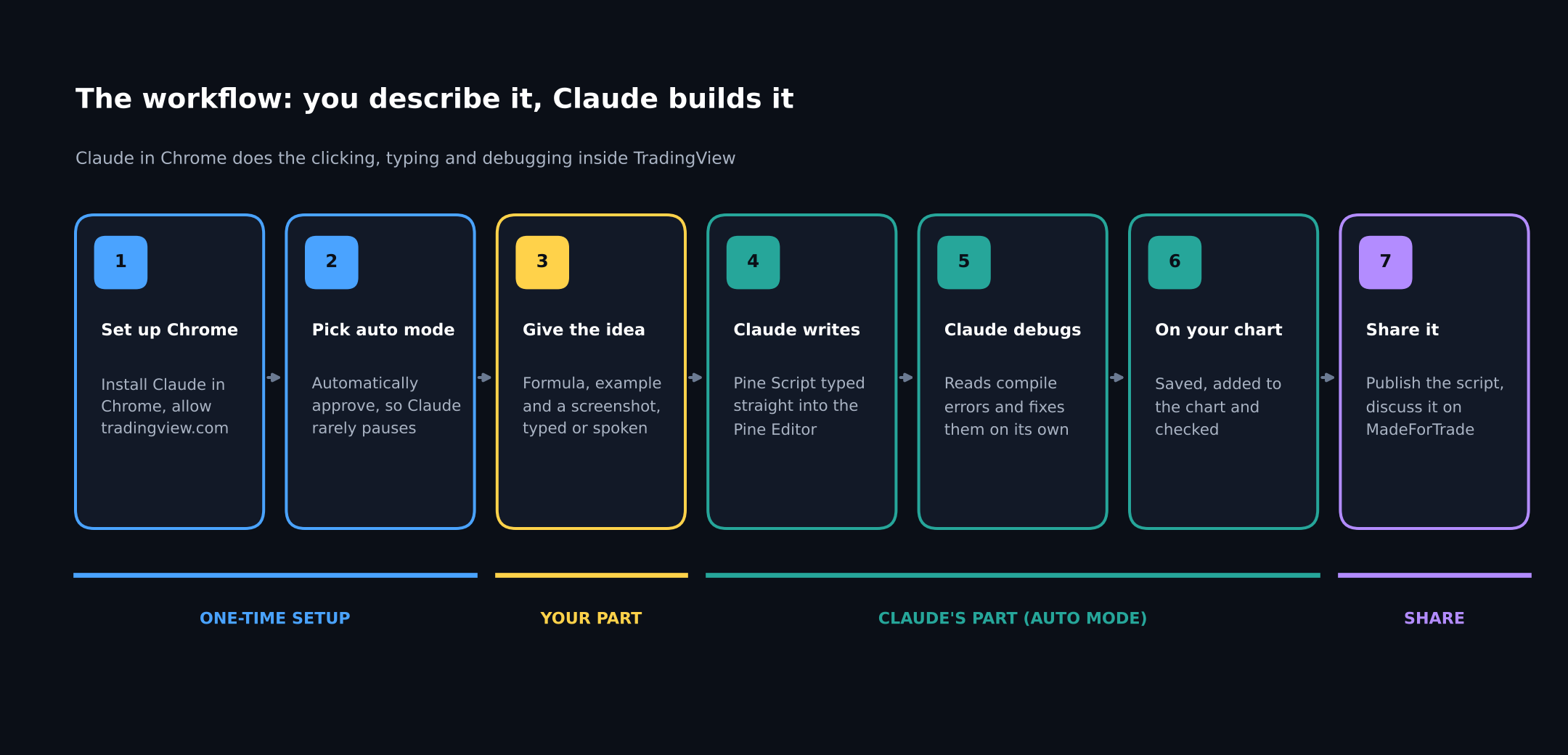
Figure 1: The full workflow. After a one-time setup, you give Claude the idea and it writes, debugs and adds the indicator on its own.
What Is Claude in Chrome?
Claude in Chrome is a browser extension from Anthropic. It opens Claude in a side panel next to the website you are using. Unlike a normal chat window, Claude in the side panel can see and operate the page: it takes screenshots, reads what is on screen, clicks buttons, and types into text boxes, just as you would.
For TradingView, that means Claude can:
- Look at your chart and the Pine Editor
- Open the Pine Editor and type a complete script into it
- Click Save and Add to chart
- Read compile errors in the editor console and correct the code
- Check that the indicator now appears on the chart, and adjust colours or settings when you ask
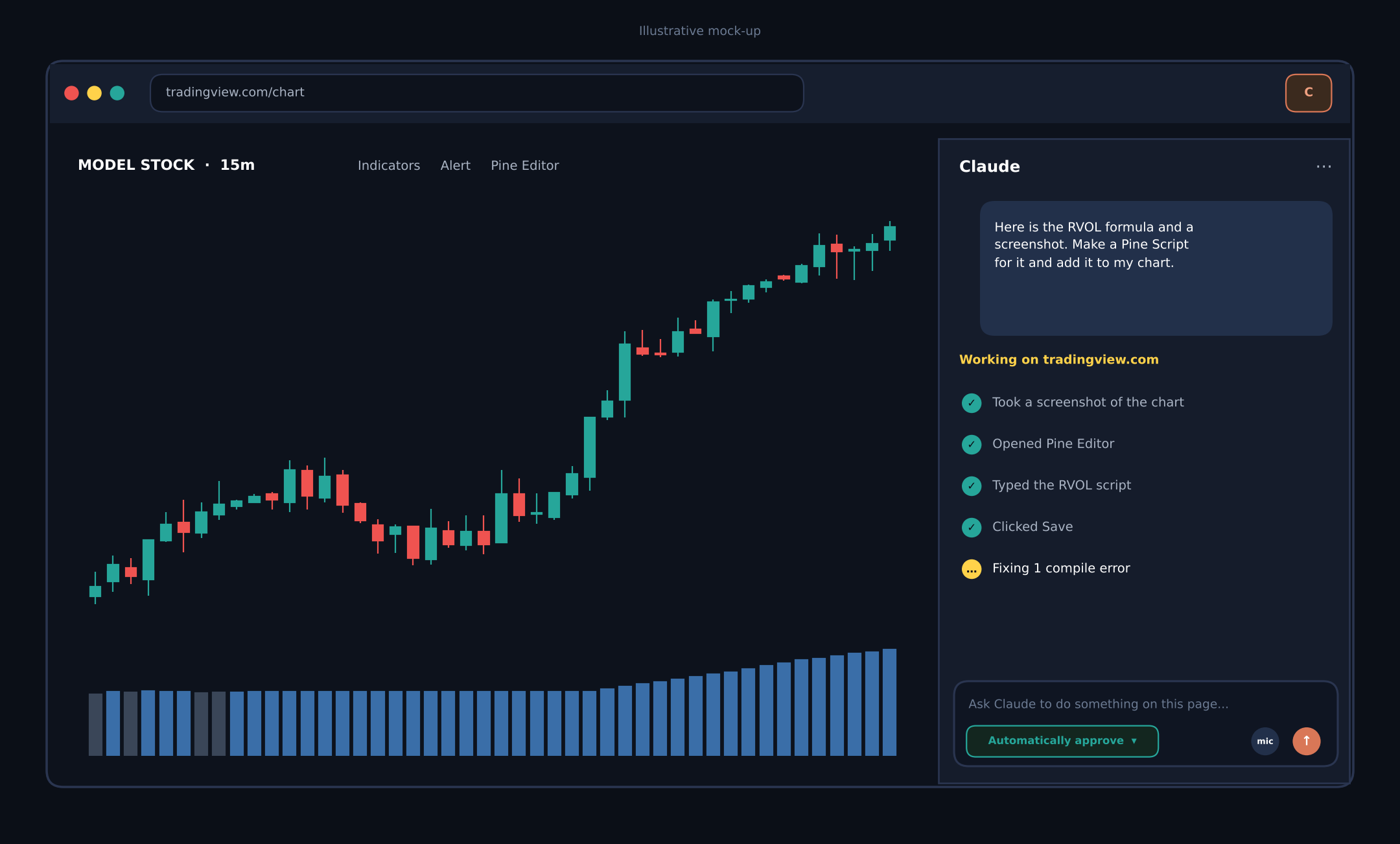
Figure 2: Illustrative mock-up. TradingView on the left, the Claude side panel on the right, showing each action Claude has taken on the page.
How the pieces connect
You talk to Claude in the side panel. Claude works inside the TradingView tab. TradingView gets its latest data from Dhan through the Trading Panel. Nothing needs to be copied between windows by hand.
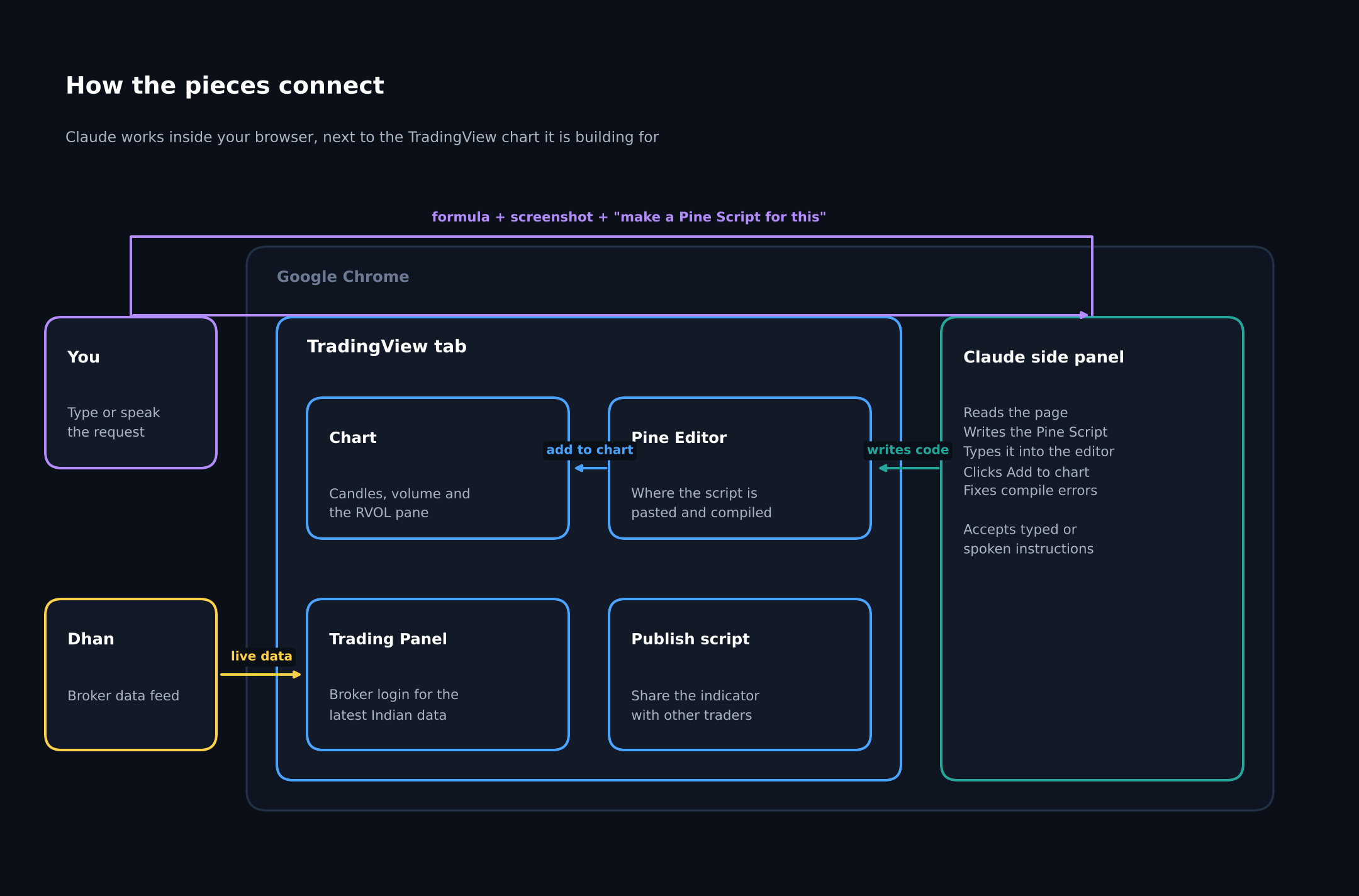
Figure 3: How you, Claude, TradingView and Dhan connect inside one Chrome window.
Step 1: Install Claude in Chrome
What to do
Add the Claude extension to Chrome and sign in.
Why it matters
The extension is what lets Claude act on the TradingView page. Without it, Claude can only give you code to paste yourself.
How to do it
- Open the Chrome Web Store and search for Claude.
- Choose the official extension published by Anthropic.
- Click Add to Chrome and confirm the prompt.
- Pin the extension to your toolbar so it is always one click away.
- Click the icon and sign in with your Claude account.
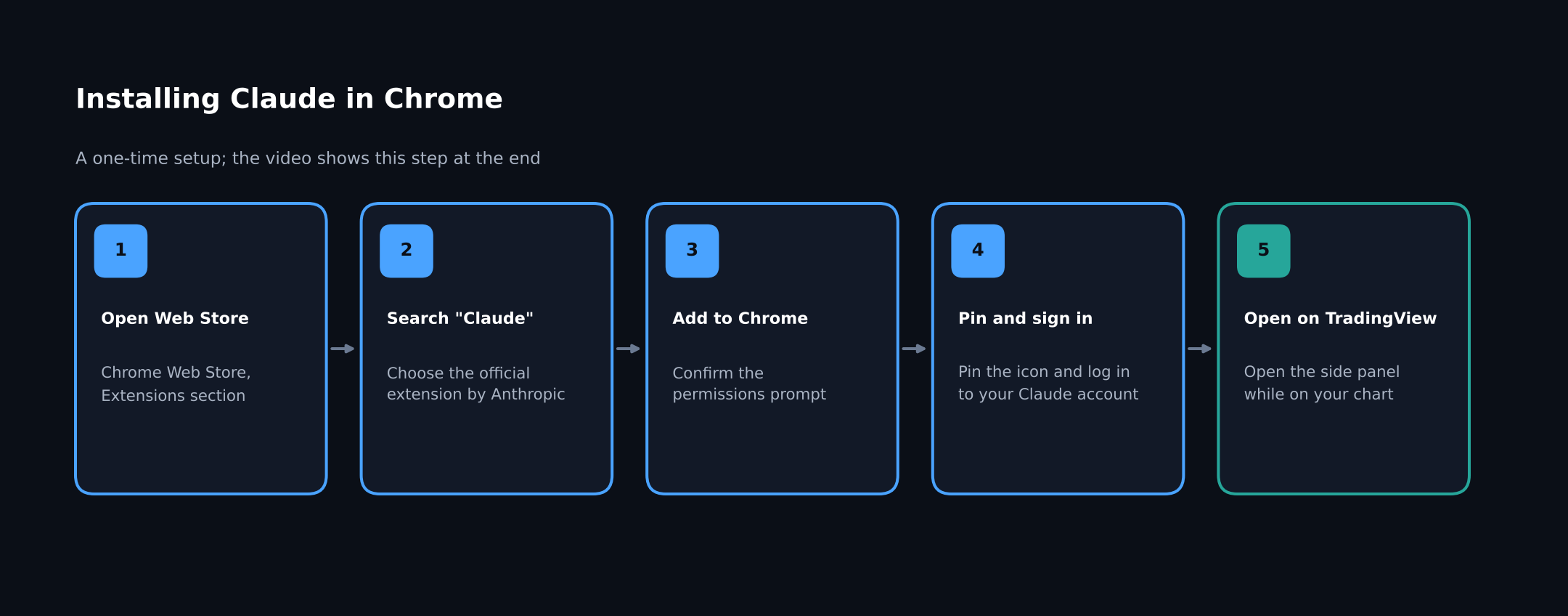
Figure 4: Installing Claude in Chrome takes five steps and is only done once.
Expected result
When you click the Claude icon on any page, the side panel opens on the right side of the browser, ready for instructions.
Note: If the Web Store shows the extension as already added, it is installed; simply pin it and sign in. Claude in Chrome needs a paid Claude plan.
Step 2: Choose Auto Mode
This is the setting that turns Claude from an assistant that asks at every step into one that does the whole job on its own.
What to do
Open the permission mode drop-down on the chat input of the side panel and pick the mode you want.
Why it matters
Building an indicator takes dozens of small actions: clicks, keystrokes, saves and re-saves. If Claude asks before each one, you end up clicking Allow all the time. Auto mode lets Claude run through all of them while you watch.
The three modes
| Mode | What Claude does | When to use it |
|---|---|---|
| Manually approve | Asks before each action | Your first run, or while you are learning what Claude does |
| Automatically approve | Checks each action for safety, runs the safe ones without stopping, and pauses only when something needs you | Recommended auto mode for building indicators on TradingView |
| Skip all approvals | Runs every action with no pauses and no automatic safety checks | Only for tasks where you fully trust every site and step involved |
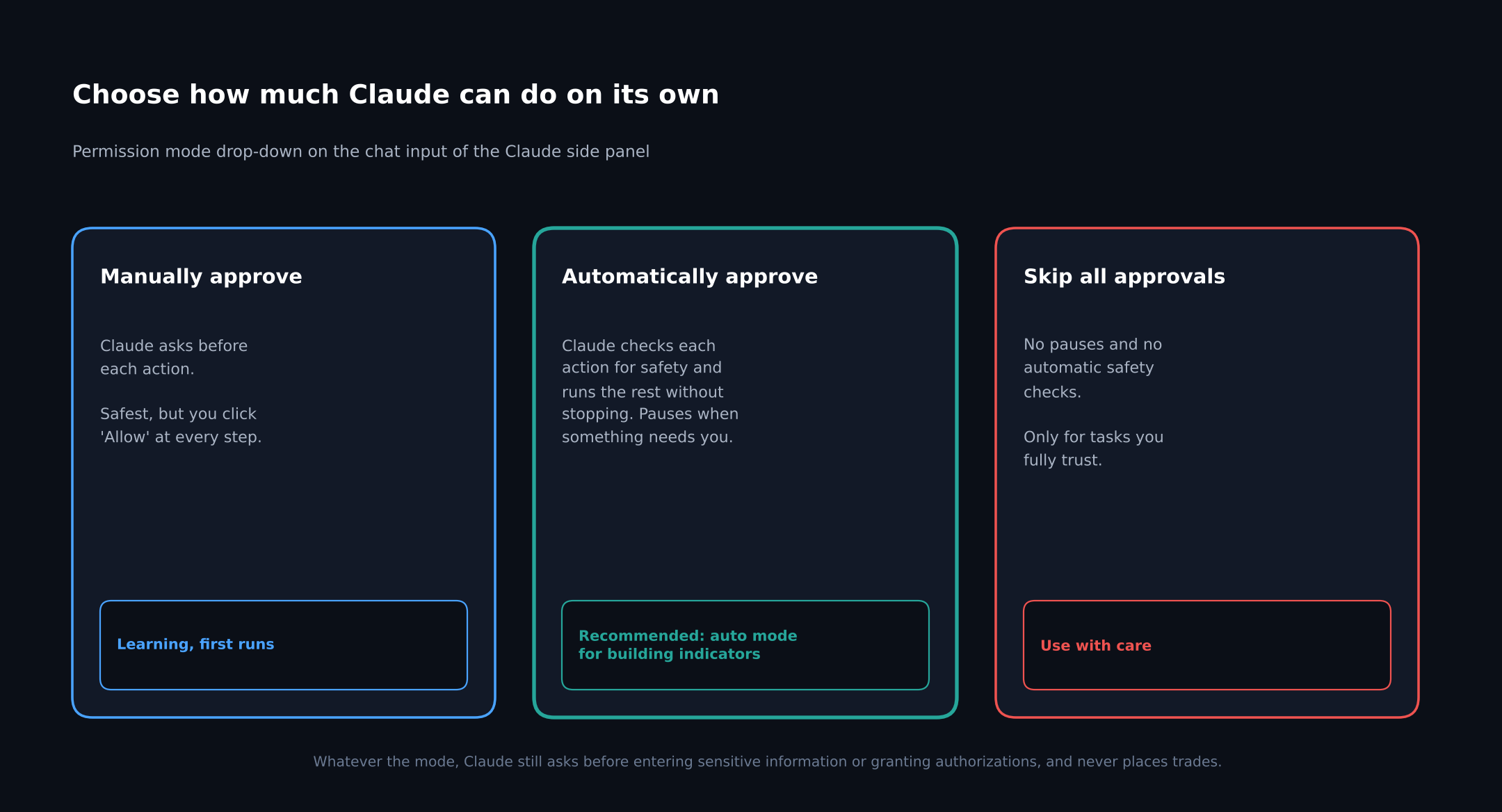
Figure 5: The three permission modes. Automatically approve gives you hands-free auto mode with safety checks still in place.
Warning: Whichever mode you choose, Claude still asks before entering sensitive information or granting authorizations, and it will never place trades or carry out financial transactions. Claude in Chrome builds and edits your indicators; it does not trade for you.
Allow Claude to work on TradingView
The first time Claude tries to act on TradingView, a New permissions required prompt appears. Choose Always allow actions on this site so Claude can work on tradingview.com in future sessions without asking again.
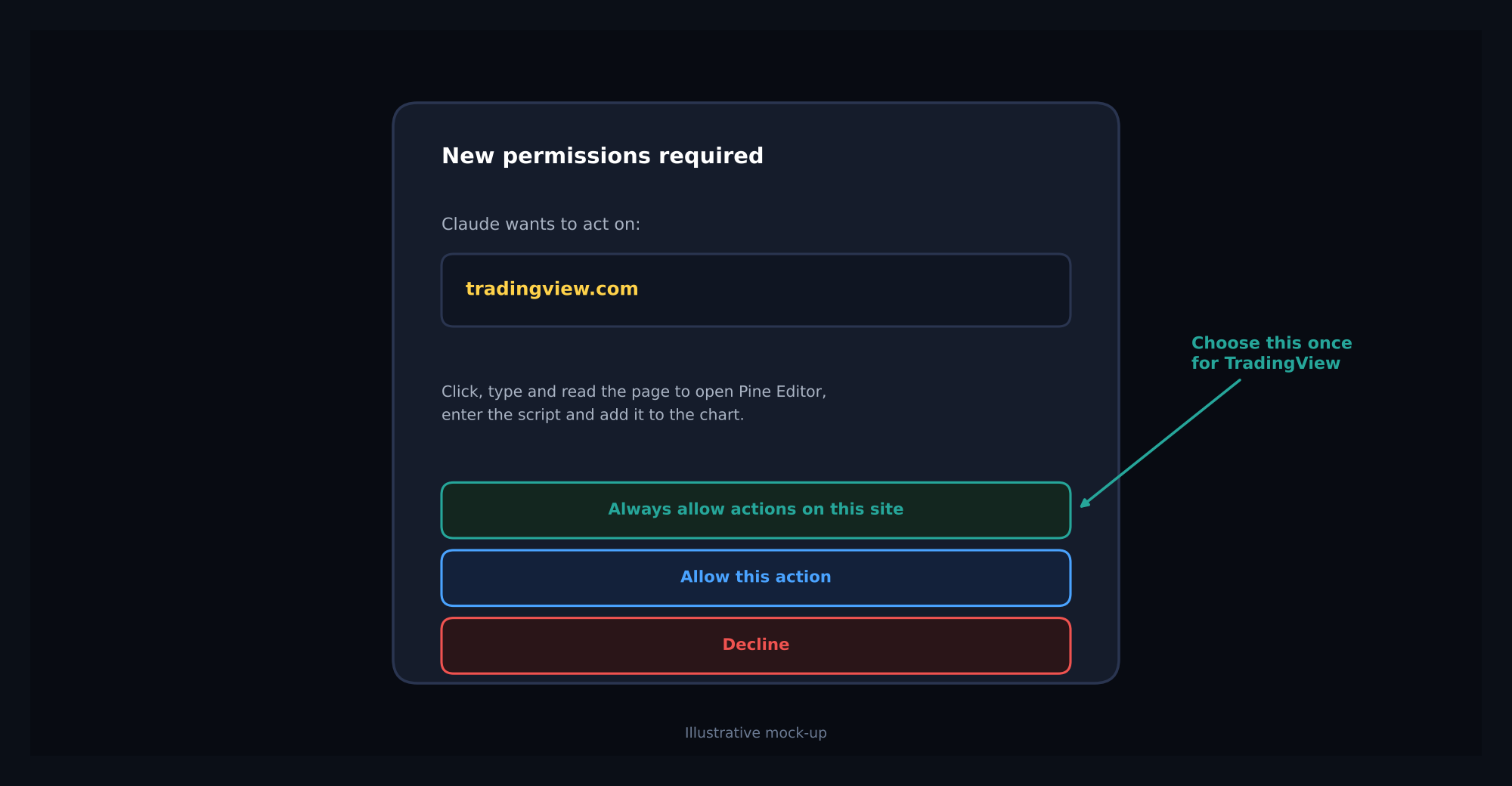
Figure 6: Illustrative mock-up of the site permission prompt. Allowing tradingview.com once is enough.
Tip: Only allow the sites you need for this job. You can review or remove allowed sites at any time from the side panel’s three-dot menu, under the extension settings.
Expected result
The side panel shows Automatically approve in the mode selector, and tradingview.com is on your list of allowed sites.
Step 3: Connect TradingView to Dhan (Recommended)
What to do
Open TradingView, click Trade to open the Trading Panel at the bottom of the chart, choose Dhan, and log in.
Why it matters
TradingView may not always show the latest Indian market data. Any indicator Claude builds is only as good as the data under it, so connecting your broker keeps the chart, and the indicator, current.
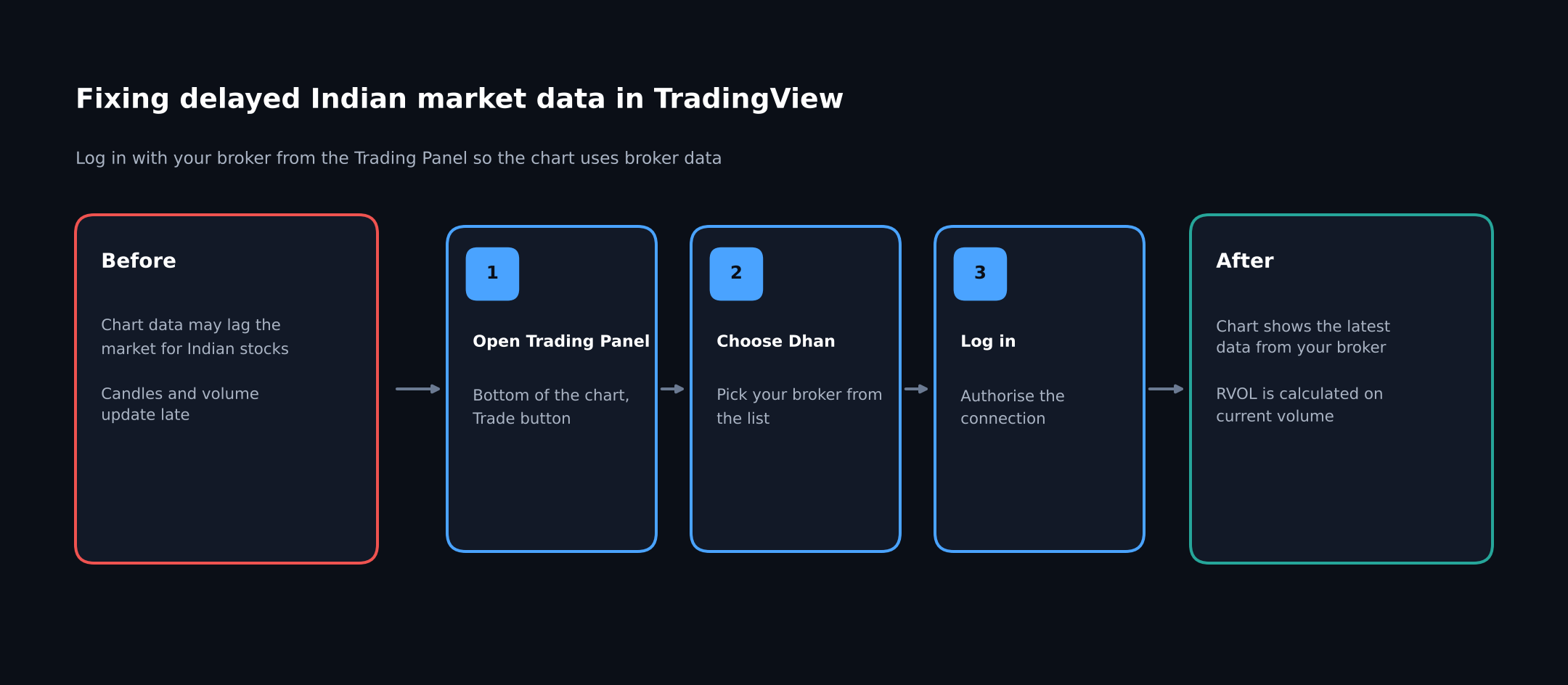
Figure 7: Logging in to Dhan from the Trading Panel gives the chart the latest data.
Note: Logging in to your broker is something you do yourself. Claude will not enter login details or authorize connections on your behalf.
Step 4: Prepare Your Idea (The RVOL Example)
Claude builds exactly what you describe, so the quality of the indicator depends on the clarity of your idea. In the video, the idea is RVOL, Relative Volume, an indicator used by professional traders to judge whether a breakout is real or likely to fail.
In one line: RVOL compares a stock’s volume so far today with its own average volume by the same time of day over the last 10 sessions. An RVOL of 1 is normal, and 2 means double the usual activity. A breakout with RVOL above 2 has real money behind it; one on thin volume often fails.
RVOL = Volume traded so far today / Average volume traded by this time over the last 10 sessions

Example (TCS at 09:45):
RVOL = 8.46 lakh / 3.70 lakh = 2.28
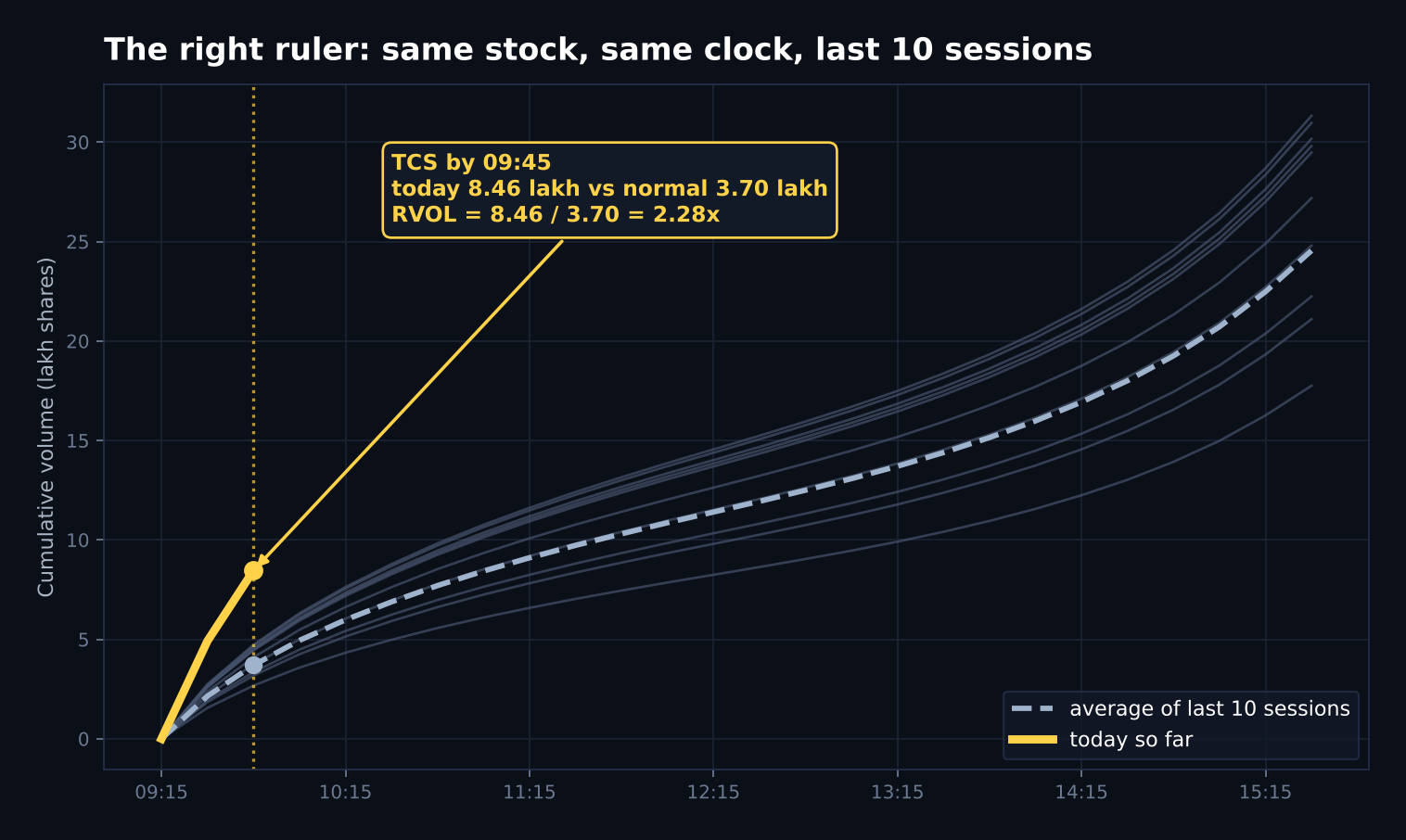
Figure 8: The worked example you hand to Claude. At 9:45, TCS has traded 2.28 times its normal volume for that time of day.
What to collect for Claude
- Search for the RVOL formula and copy the formula, the worked example, and the calculation steps.
- Take a screenshot of the formula so Claude can see it exactly as written.
That is all the “research” you need to do. Claude handles the conversion into code.
Step 5: Ask Claude to Build It
What to do
With TradingView open and auto mode on, paste the formula and the screenshot into the side panel and ask for a Pine Script.
How to do it
- Open your chart on TradingView.
- Open the Claude side panel.
- Attach the formula screenshot.
- Paste the formula and example, then add your request.
- Check that the mode says Automatically approve, and send.
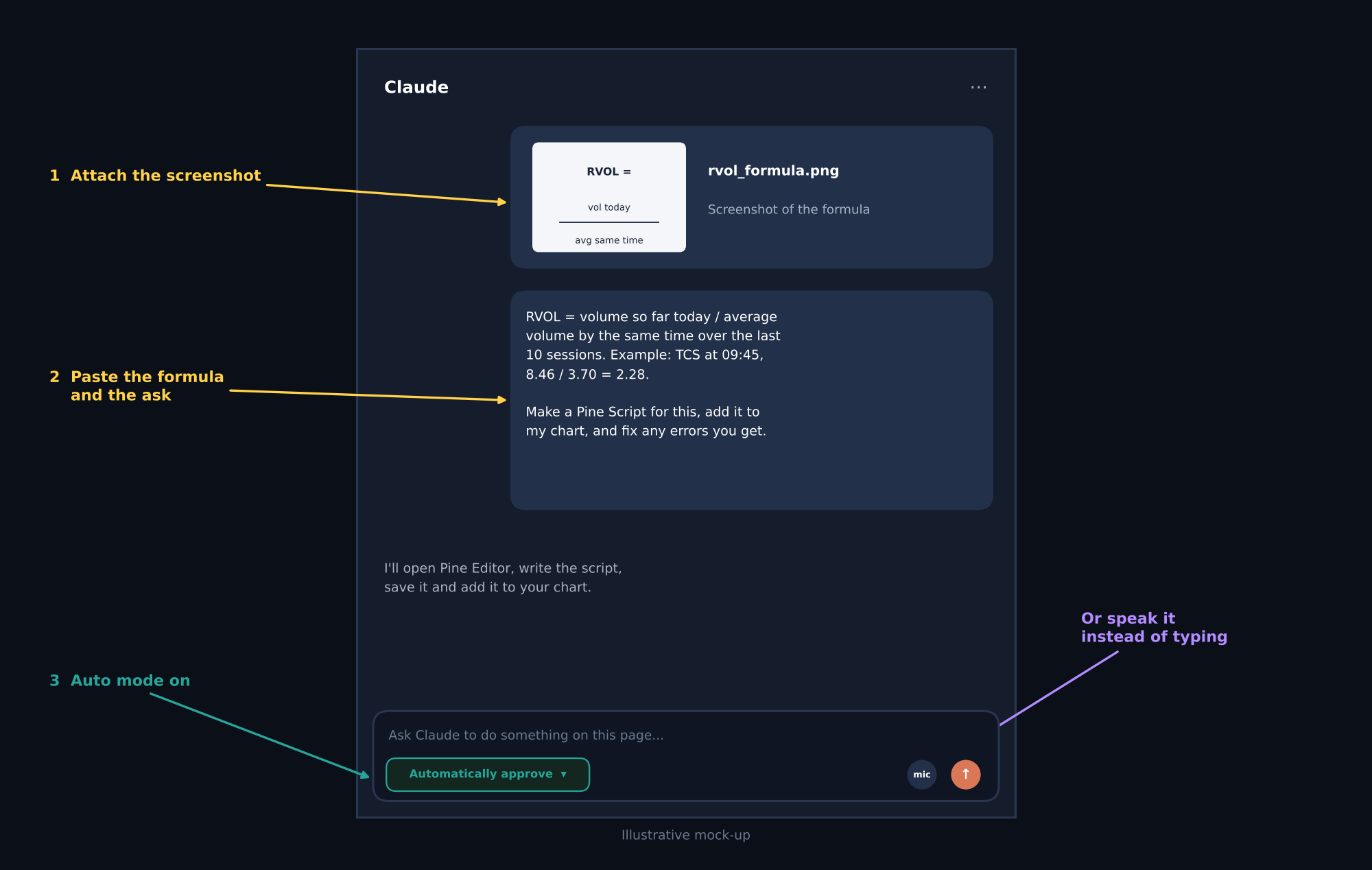
Figure 9: Illustrative mock-up of the request: a screenshot, the formula, and a clear ask, sent with auto mode on.
A request that works well:
Here is the formula for Relative Volume (RVOL), with an example and the steps.
I have also attached a screenshot of the formula.

Make a Pine Script indicator for this on my TradingView chart:
- Compare volume so far today with the average volume by the same time of day
  over the last 10 sessions. Make the 10 sessions and the 2.0 threshold editable.
- Show RVOL as columns in a separate pane, with lines at 1 and 2.
- Open the Pine Editor, write the script, save it as "RVOL" and add it to my chart.
- If you get any compile errors, fix them and try again.
What makes a good request
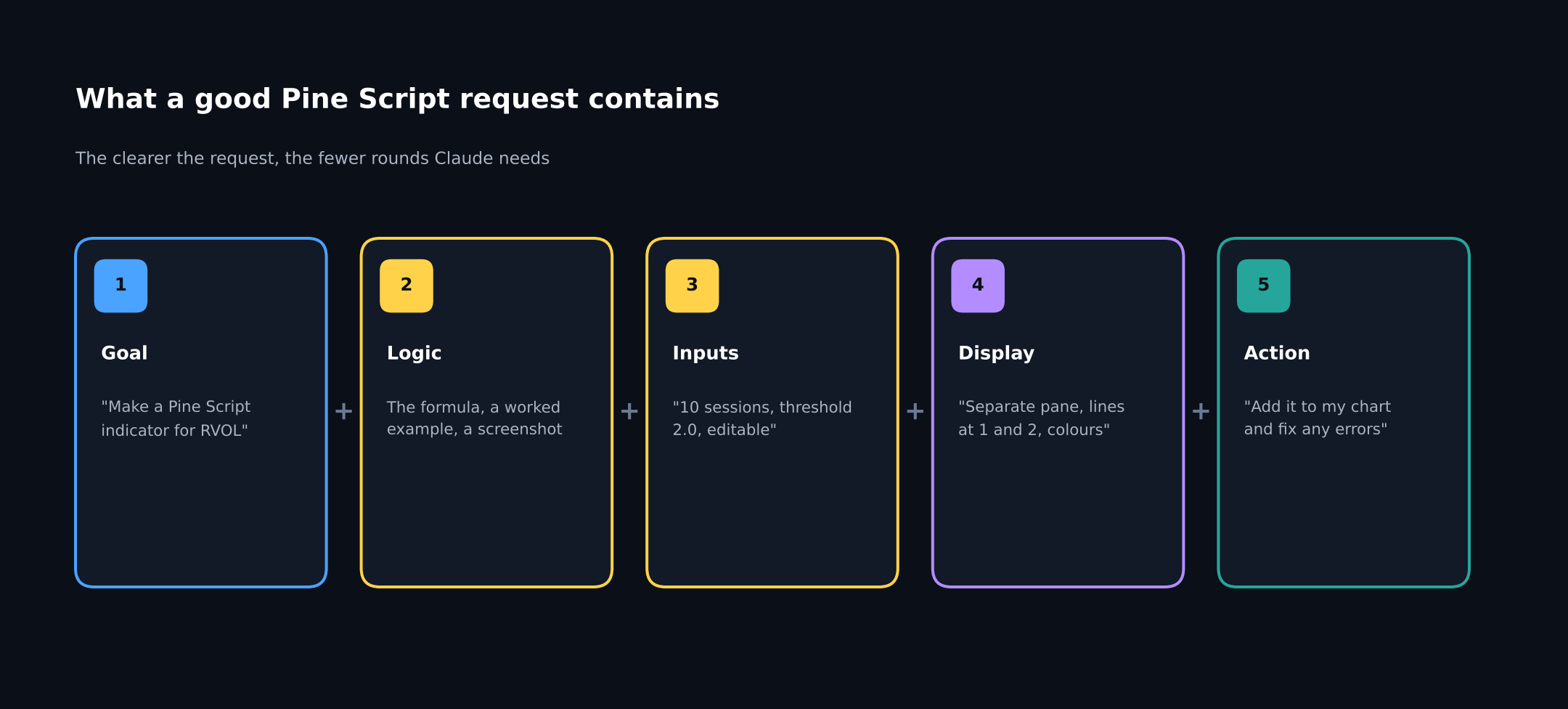
Figure 10: Five parts of a request Claude can build from in one go.
| Part | Why it helps |
|---|---|
| Goal | Tells Claude what kind of script to write (indicator or strategy) |
| Logic | The formula and an example remove guesswork about the maths |
| Inputs | Settings you want to change later without asking for new code |
| Display | How the result should look on the chart |
| Action | Gives Claude permission to finish the job: save, add to chart, fix errors |
Tip: Speak instead of typing. In the video the presenter simply speaks the request instead of typing it. Talking through what you want is often faster and more natural than writing it out.
Step 6: Watch Claude Work in Auto Mode
This is the main part of the video. Once the request is sent, the presenter takes his hands off the mouse, and Claude does the whole job inside TradingView on its own.
How auto mode works
Claude works in a loop. It sees the page by taking a screenshot and reading it, thinks about the next action, acts by clicking or typing, and checks the result on screen. If something is wrong, such as a compile error, it goes round the loop again until the indicator works.
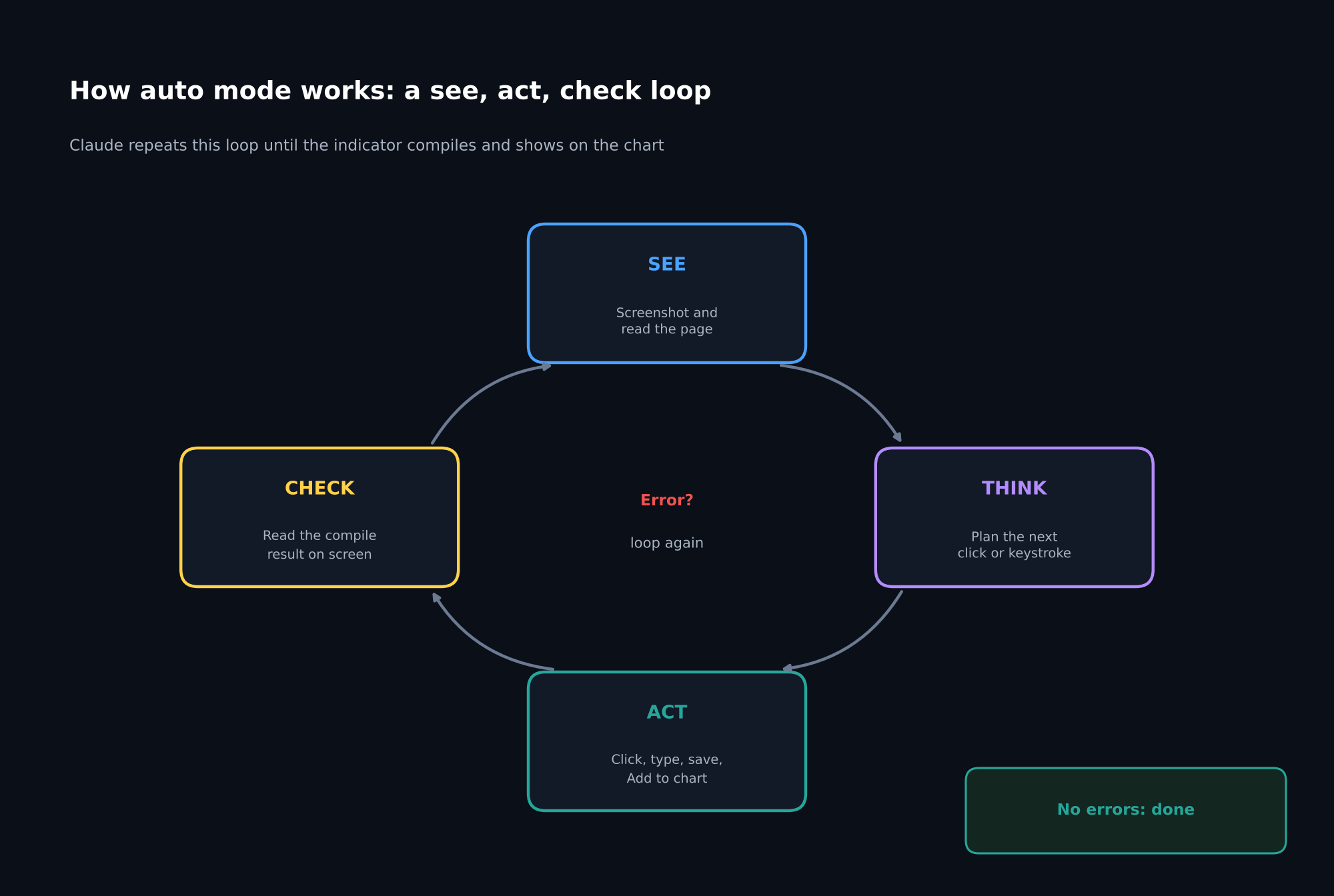
Figure 11: The see, think, act, check loop that Claude repeats until the job is finished.
What Claude actually does
The side panel shows a live list of every action as it happens, so you always know what Claude is doing on the page.
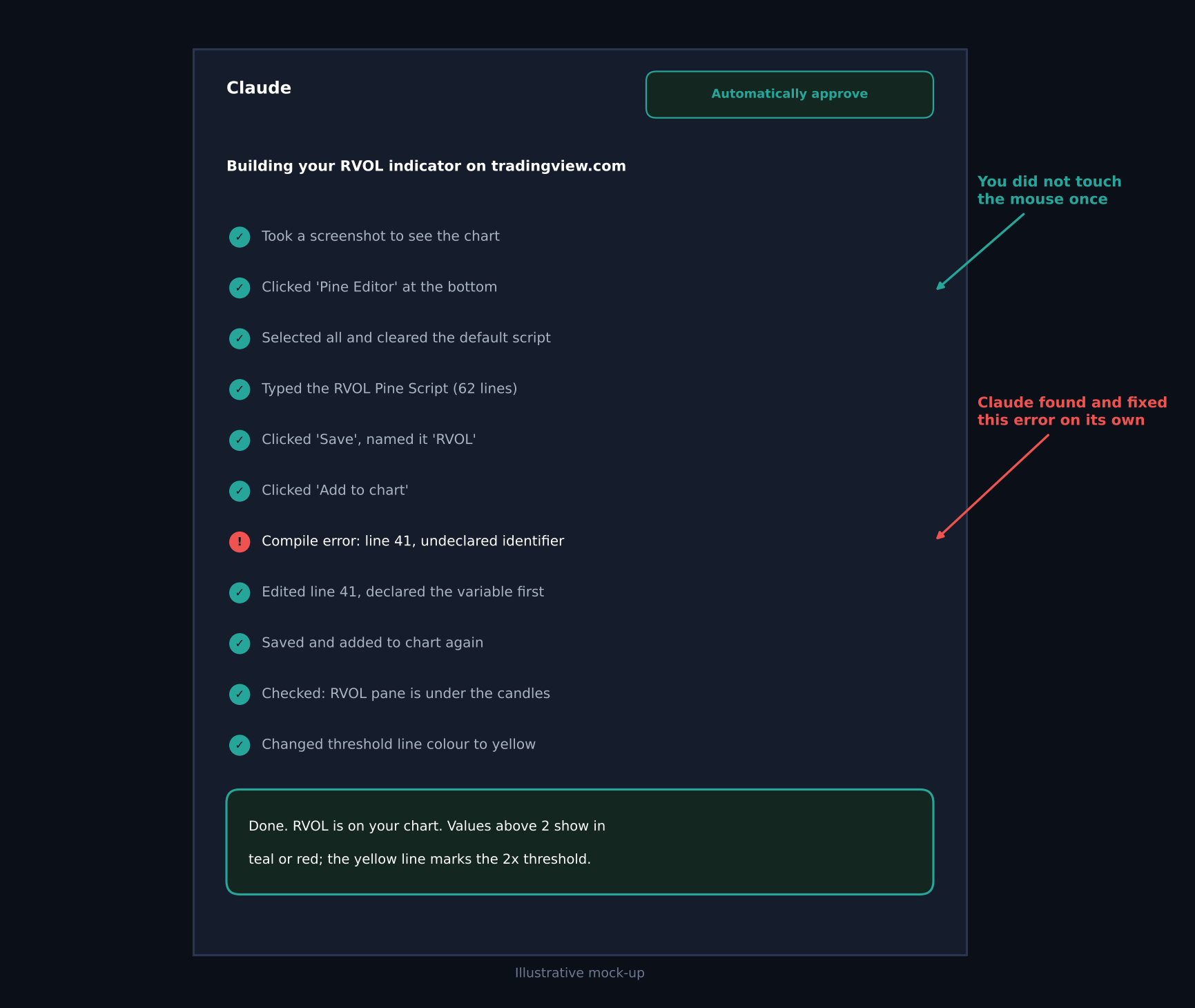
Figure 12: Illustrative mock-up of Claude’s action list in auto mode, from the first screenshot to the finished indicator.
| # | Claude’s action | Why |
|---|---|---|
| 1 | Takes a screenshot of the chart | To understand what is on the page |
| 2 | Opens the Pine Editor | That is where indicators are written |
| 3 | Clears the default script and types the RVOL code | Converts your formula into Pine Script |
| 4 | Clicks Save and names the script | So the indicator is kept in your account |
| 5 | Clicks Add to chart | Compiles the script and applies it |
| 6 | Reads the console and fixes any errors | So you get a working indicator, not broken code |
| 7 | Checks the chart for the RVOL pane | Confirms the job is really done |
Claude fixes its own errors
Pine Script is strict, and first drafts often have a small mistake: an undeclared variable, a wrong type, a missing bracket. In manual coding, this is where most beginners get stuck. In auto mode, Claude reads the error message in the Pine Editor console, edits the line, and compiles again without you doing anything.
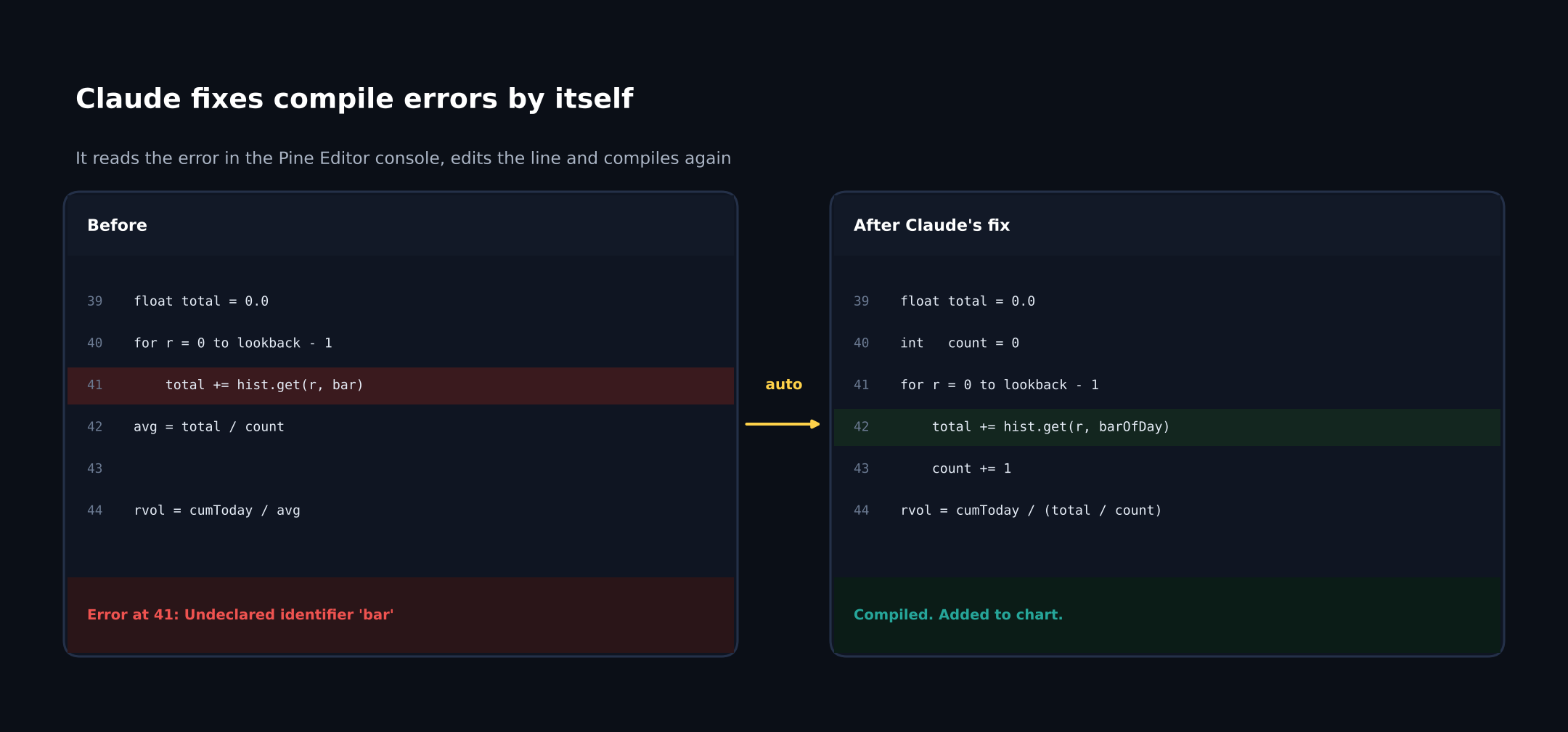
Figure 13: Claude reads a compile error, fixes the line, and recompiles on its own.
Expected result
The script is saved in your Pine Editor, it compiles without errors, and Claude reports that it has been added to your chart.
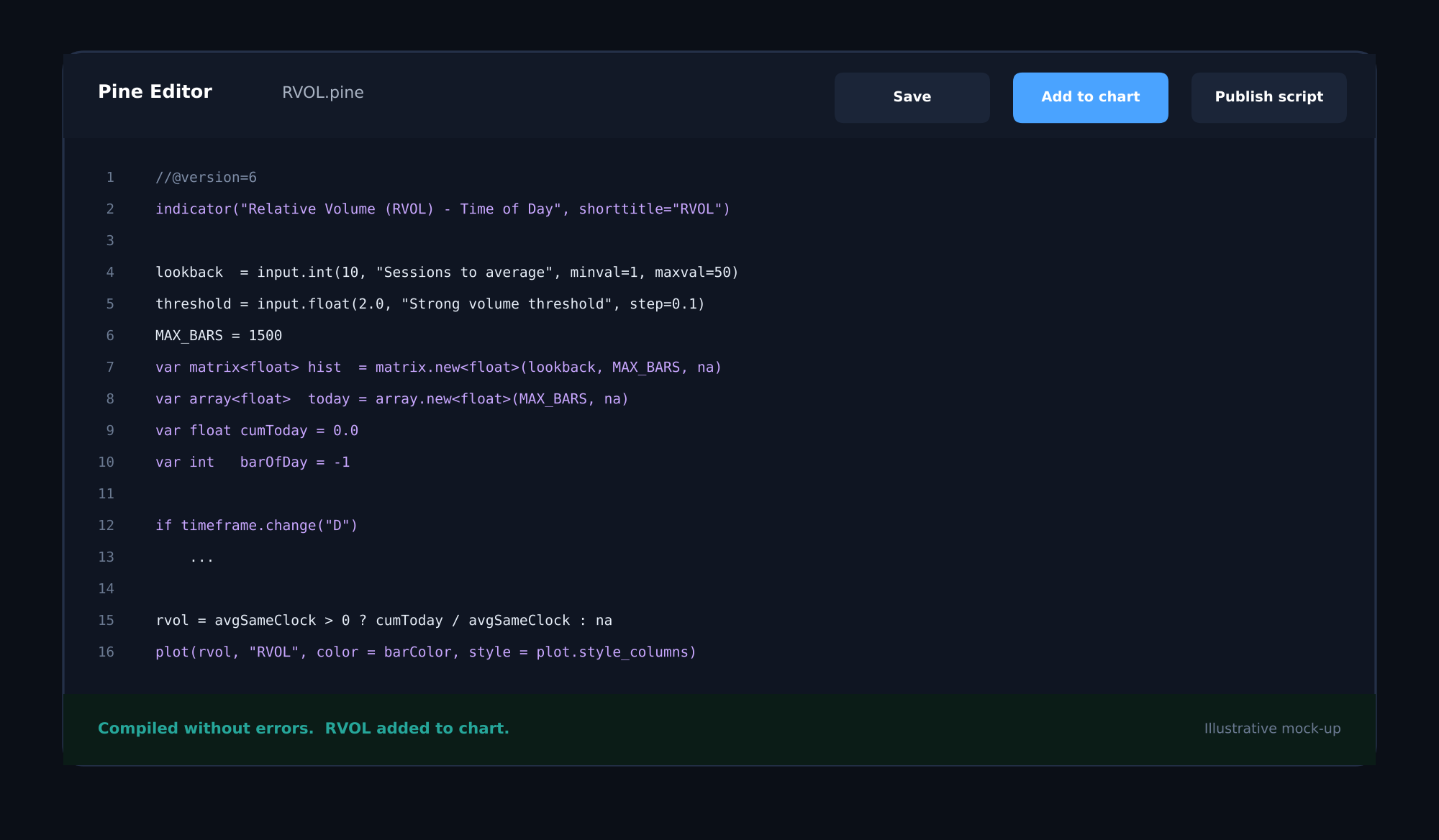
Figure 14: Illustrative mock-up of the Pine Editor after Claude has written, compiled and added the script.
Step 7: Check the Result on Your Chart
What to do
Look at the chart. The RVOL pane should now sit under your candles.
What to look for
- RVOL resets at the start of each session.
- On ordinary days it stays near 1.
- When volume surges, for example on a real breakout, the bars jump above the 2x line and change colour.
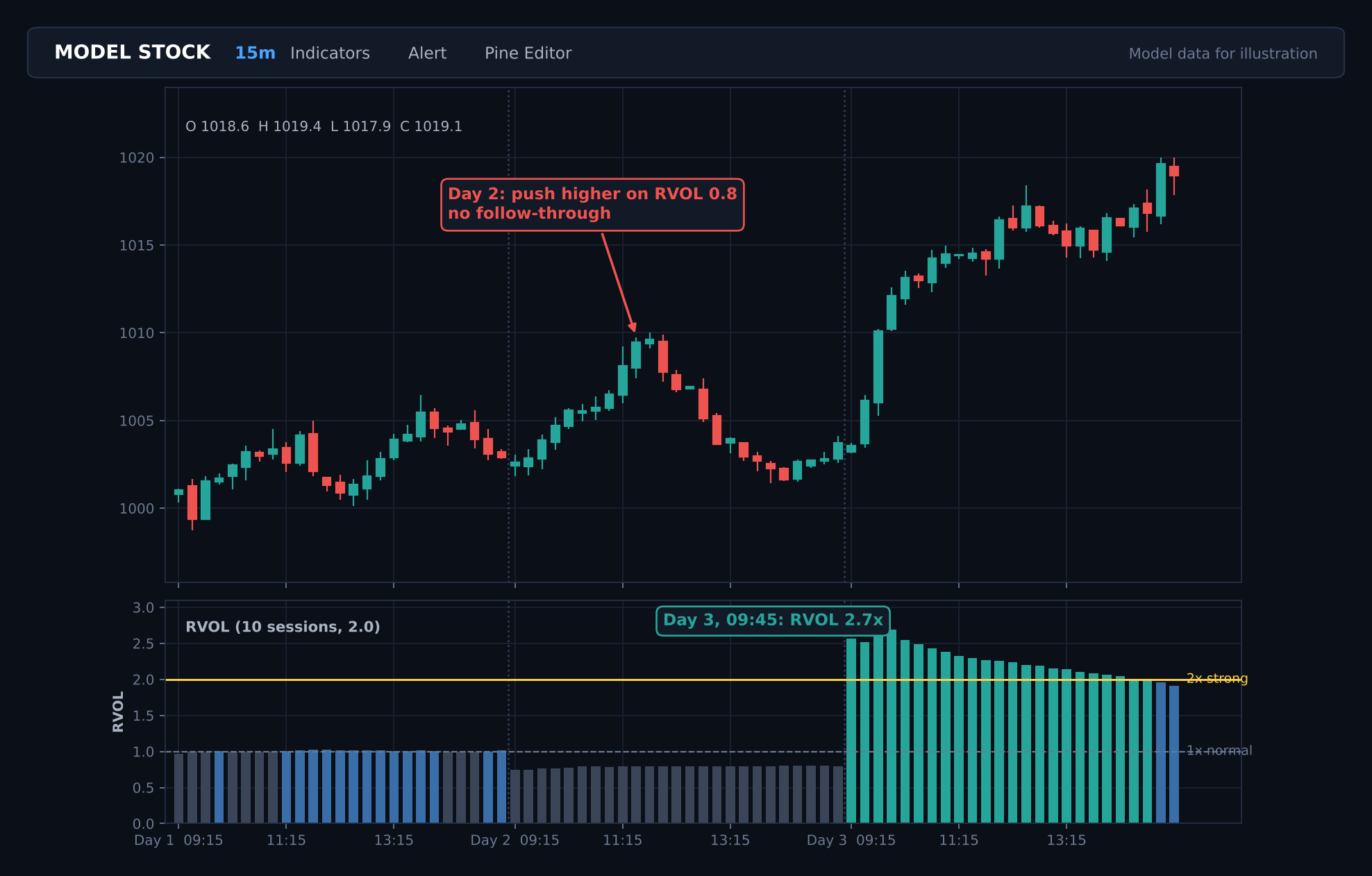
Figure 15: Model chart of three sessions with the RVOL pane Claude built. Day 2’s push higher on thin volume fails; Day 3’s breakout at 9:45 comes with RVOL near 2.7x. Model data for illustration.
Make changes by asking
Any change is one more sentence in the side panel, for example:
- “Make the threshold line dashed and yellow.”
- “Use 20 sessions instead of 10.”
- “Add an alert when RVOL crosses above 2.”
Claude edits the script, saves it, and updates the chart in the same way.
Warning: Always review what Claude has built before you rely on it. Check a few values against the formula yourself. RVOL is a confirmation tool, not a guarantee, and no indicator replaces your own risk management.
Why This Changes Things
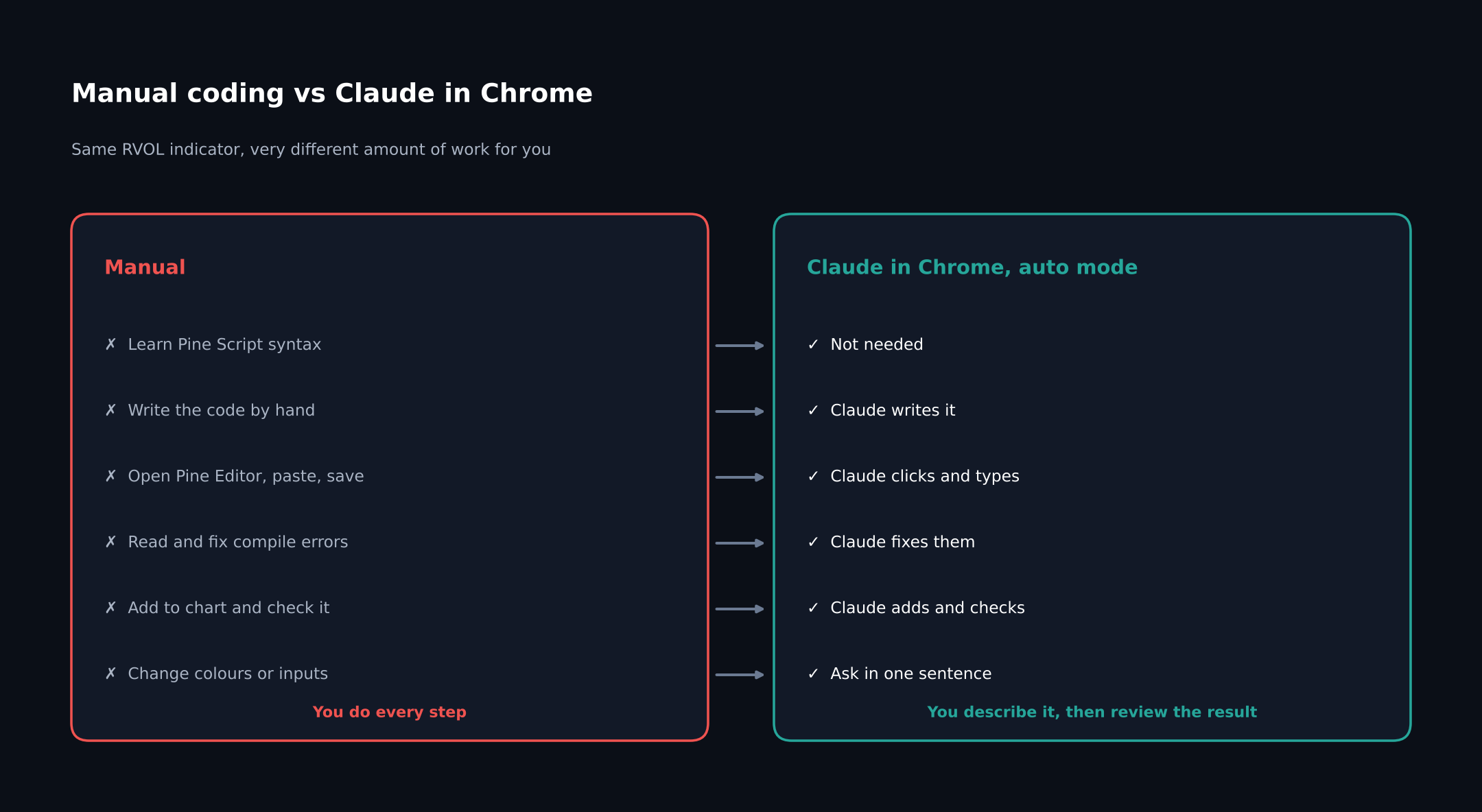
Figure 16: The same indicator built by hand and with Claude in Chrome in auto mode.
The bigger point of the video is not RVOL itself. It is that any indicator, strategy or backtest you can describe, Claude can now build on TradingView for you, without you writing code or doing the implementation.
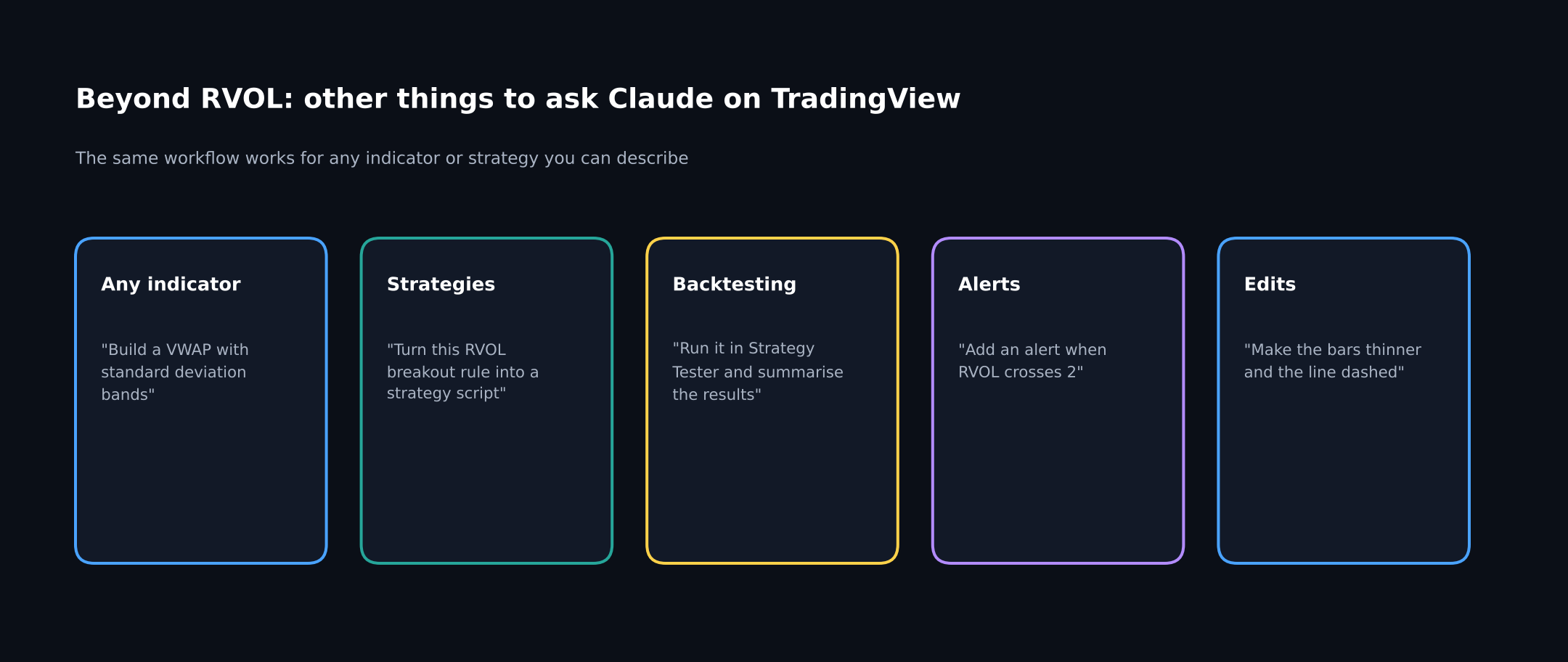
Figure 17: Other requests that follow exactly the same workflow.
Step 8: Publish and Share
What to do
Publish the script so anyone with a TradingView account can add it, and join the discussion on MadeForTrade.
How to do it
- Open the script in the Pine Editor.
- Click Publish script.
- Add a clear title and a description of what the indicator does and its inputs.
- Set it to Public and submit.
- Anyone can now open Indicators, search for the name, and add it.
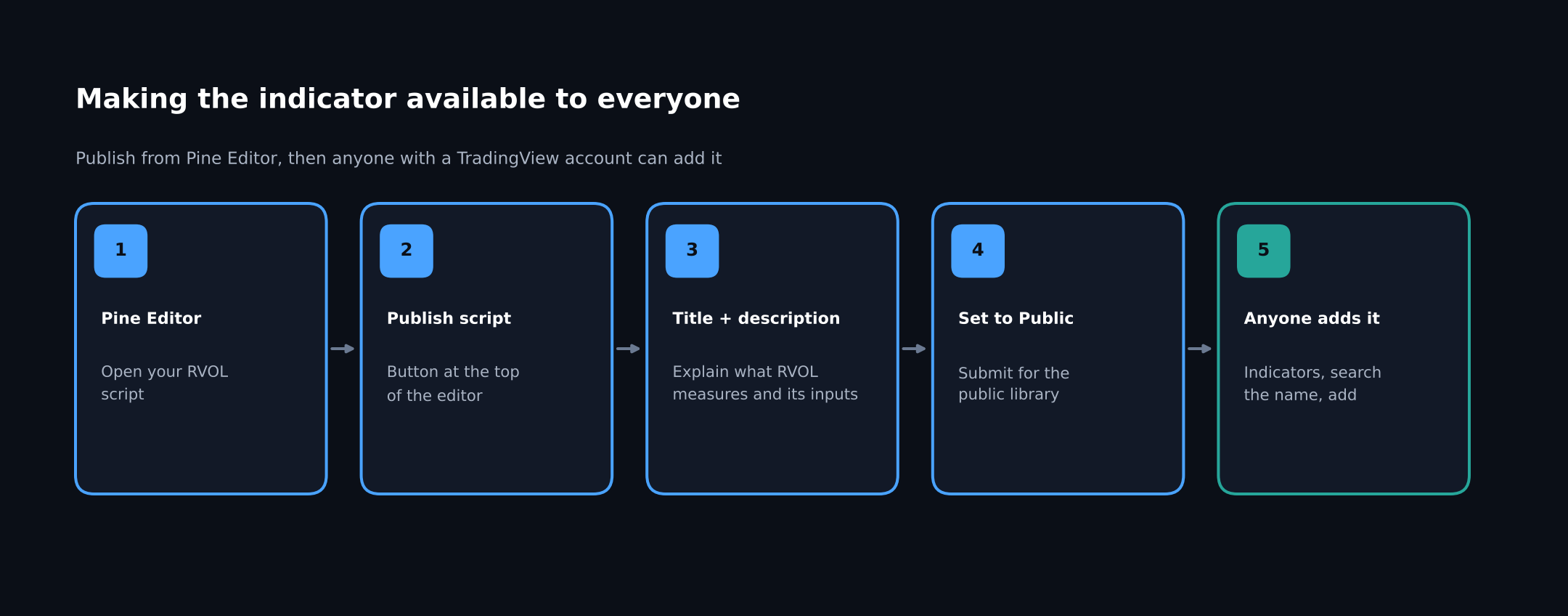
Figure 18: Publishing the indicator so other traders can use it.
Tip: Claude in Chrome works on other sites too. On MadeForTrade, Dhan’s trading community, you can open the side panel and ask Claude questions about any post you are reading.
Quick Troubleshooting
| Problem | Likely cause | Fix |
|---|---|---|
| Claude keeps asking before each click | Mode is Manually approve | Switch to Automatically approve in the mode drop-down |
| Claude asks for permission on TradingView | Site not yet allowed | Choose Always allow actions on this site |
| Claude only gives you code to paste | Side panel not open on the TradingView tab | Open the side panel while the chart tab is active |
| Claude pauses partway through | It reached a step that needs you, such as a login | Complete that step yourself, then tell Claude to continue |
| Indicator shows no values | Not enough history, or a daily chart | Use an intraday timeframe and allow at least one past session |
| Candles or volume look delayed | TradingView not connected to a broker | Log in with Dhan from the Trading Panel (Step 3) |
Summary
- Claude in Chrome puts Claude in a side panel next to TradingView, where it can see the page, click, and type.
- Install once, sign in, and allow tradingview.com.
- Auto mode (Automatically approve) lets Claude run every step without asking, while still pausing for anything sensitive. It never places trades.
- Give a clear request: the goal, the formula with an example and screenshot, the inputs, the display, and the action. Type it or speak it.
- Claude writes the Pine Script, saves it, adds it to the chart, and fixes its own compile errors.
- Ask for changes in plain words, then publish the script and share it on MadeForTrade.
You never write a line of code. You describe the idea, and Claude builds it.
Appendix: The Script Claude Wrote (Reference)
You do not need to read or write this yourself. It is included so you can compare it with what Claude produces for you; the exact code Claude writes may differ.
//@version=6
indicator("Relative Volume (RVOL) - Time of Day", shorttitle = "RVOL", overlay = false)

lookback  = input.int(10, "Sessions to average", minval = 1, maxval = 50)
threshold = input.float(2.0, "Strong volume threshold", step = 0.1)

if not timeframe.isintraday
    runtime.error("RVOL (time of day) works on intraday timeframes only.")

MAX_BARS = 1500
var matrix<float> hist  = matrix.new<float>(lookback, MAX_BARS, na)
var array<float>  today = array.new<float>(MAX_BARS, na)
var float cumToday       = 0.0
var int   barOfDay       = -1
var int   sessionsStored = 0

if timeframe.change("D")
    if barOfDay >= 0
        hist.remove_row(lookback - 1)
        hist.add_row(0, today.copy())
        sessionsStored := math.min(sessionsStored + 1, lookback)
    today    := array.new<float>(MAX_BARS, na)
    cumToday := 0.0
    barOfDay := -1

barOfDay += 1
cumToday += nz(volume)
if barOfDay < MAX_BARS
    today.set(barOfDay, cumToday)

float avgSameClock = na
if barOfDay < MAX_BARS and sessionsStored > 0
    float total = 0.0
    int   count = 0
    for r = 0 to lookback - 1
        float v = hist.get(r, barOfDay)
        if not na(v)
            total += v
            count += 1
    avgSameClock := count > 0 ? total / count : na

rvol = not na(avgSameClock) and avgSameClock > 0 ? cumToday / avgSameClock : na

strong   = not na(rvol) and rvol >= threshold
barColor = strong ? (close >= open ? color.teal : color.red) : not na(rvol) and rvol >= 1 ? color.new(color.blue, 30) : color.new(color.gray, 40)

plot(rvol, "RVOL", color = barColor, style = plot.style_columns)
hline(1.0, "Normal (1x)", color = color.gray, linestyle = hline.style_dashed)
hline(threshold, "Strong volume", color = color.yellow)
alertcondition(ta.crossover(rvol, threshold), "RVOL above threshold", "RVOL crossed above the threshold on {{ticker}}")