Hello Traders,
We have been building DEXT T3 for Super Traders, grounds up!
Over the last few months from the time we launched DEXT T3 - we have continued to make your trading experience better by shipping what our traders deserve - the best-in-class trading experience.
We noticed that many of our traders are using DEXT T3 on multiple screens / monitors. Every trading desk with more than one monitor runs into the same story. Three monitors and a laptop screen, and the terminal has no idea monitor 2 or monitor 3 exist, so every widget you pop out lands in the same default spot, and you’re dragging each one into place by hand, every session, every restart, while price is already moving.
We’ve heard this from enough of you to know it’s not a one-off note, and we weren’t fully convinced by how this behaved either. We wanted something simpler: a terminal that actually knows the monitors it’s running on, instead of leaving you to rebuild your desk from scratch every time you start it.
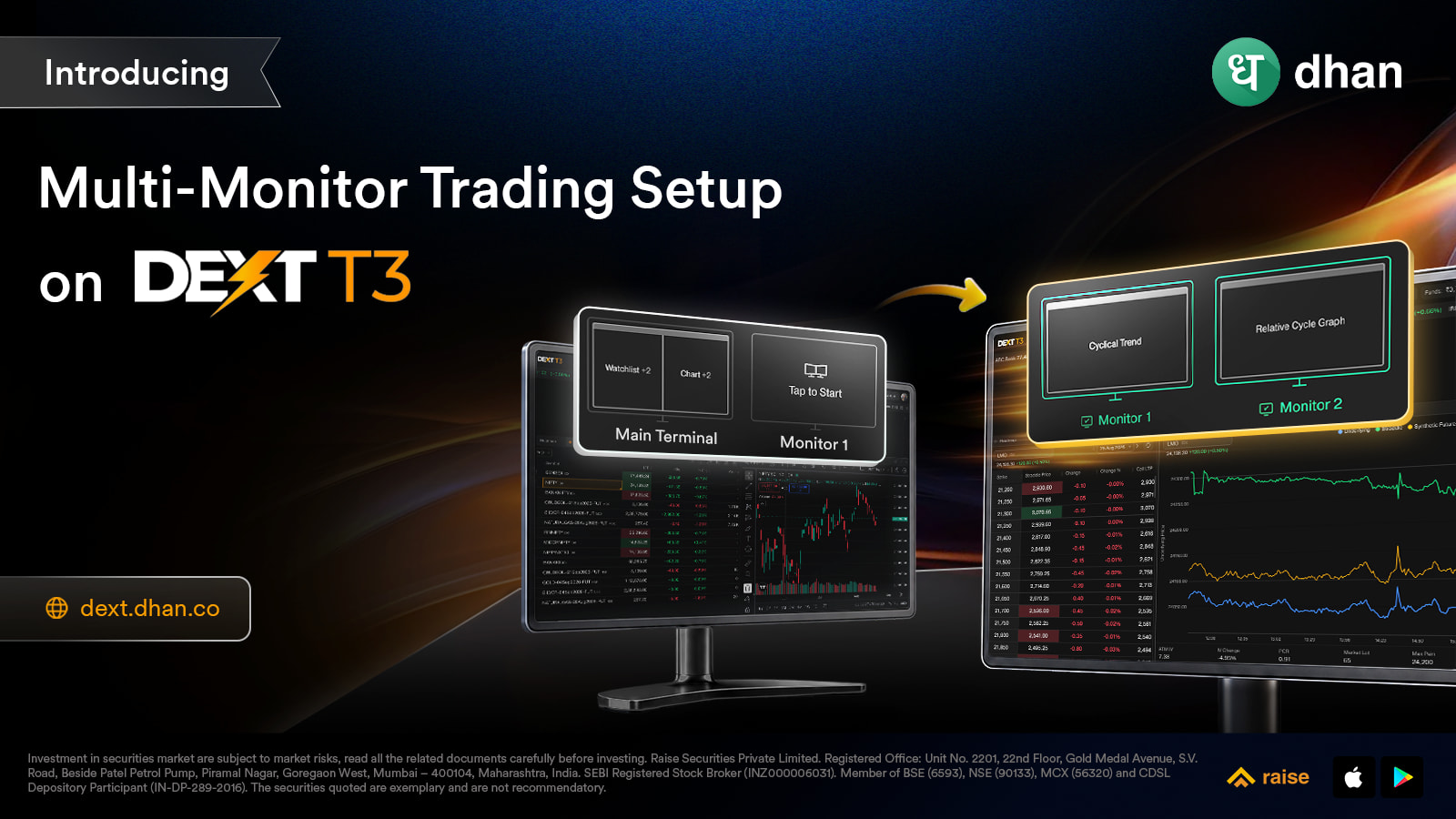
That’s why we got the Multi-Monitor Trading Setup on DEXT T3 for you. Now every screen that you trade on, will be in sync with your trading experience.
You already know what good multi-monitor behaviour feels like on your own desktop. You drag a window to another screen, it stays there, and it comes back exactly the way you left it the next time you plug in. That’s the experience we’ve built for your trading setup, and there are two ways to get there. Pop a widget out into its own window and move that window to any monitor you like.
Simple, and great for when you just need one thing out of the terminal in a hurry. Or drag a widget straight from the Main Terminal and drop it into a monitor slot inside the Multi Setup panel. DEXT T3 remembers how many screens you have, where you last left each widget, and what to do the moment one of them disappears.
Multi-Monitor Trading Setup on DEXT T3
How does DEXT T3 actually know how many monitors you’re running?
The first time you log in with Multi-Monitor Setup, DEXT T3 automatically detects your connected displays and shows you a quick status, something like “4 monitors detected,” with each detected monitor shown as a slot, ready for you to drag widgets onto.
This is purely so you discover the feature exists in the first place. Tucked away behind an icon in the top bar, it’s easy to miss otherwise. After that, the status appears again only when your monitor setup actually changes, plugging in a new one or unplugging one. It won’t repeat itself on a regular login where nothing’s changed. You won’t be nagged about your screen setup day after day.
Whenever you do want to change something, click the multi-monitor icon in the top bar and drag a widget into place, or just pop it out and move that window instead. Clicking the icon re-runs detection on demand and opens the slot picker, showing every monitor currently connected to your system, highlighted in green.
From here, you simply drag a widget off the Main Terminal and drop it onto whichever monitor you want it on, just like moving a window to another screen anywhere else on your desktop. There’s no manual “add” or “remove” step for monitors themselves; the picker reflects the monitors currently connected to your system.
DEXT T3 detects your screens, but it doesn’t decide your setup. Where each widget goes is entirely your call.
Unplug a monitor mid-session, and everything that was open on it cascades back onto Main Terminal, so nothing gets lost or stranded on a dead screen. Plug that same monitor back in, and every widget returns to exactly where it was — no rebuilding your setup from scratch every time you dock or undock.
The experience does differ a little depending on where you’re running DEXT T3. On the Downloaded EXE/ DMG for DEXT T3, you’ll see a live preview of the widget while dragging it to another screen. On the web, you’ll see a skeleton outline, clean, simple lines showing where the widget will land. The placement works the same once you drop it either way. One thing to watch for on the web: if you’ve got multiple monitors connected but DEXT T3 shows “no monitor detected,” that usually means the Window Management permission hasn’t been granted to the browser. You can turn it on manually from your browser’s site settings, and detection should pick up your monitors from there.
Picture a demand-and-supply trader’s setup, spread across three monitors the way the analysis actually flows.
-
Monitor one is context: two charts, Nifty50 and the relevant sector index, on the higher timeframe, marking out the broader demand and supply zones for the week.
-
Monitor two is set up: the scrip itself on the 15-minute, watching structure as price approaches one of those zones, alongside a sector peer on the same timeframe to see if the move is showing up there too.
-
Monitor three is confirmation and execution: the scrip on the 5-minute alongside that same sector peer on the 5-minute, looking for the rejection or shift in structure that actually triggers an entry, with the watchlist, price ladder, and Power Scalper open right alongside to act the moment that confirmation shows up.
That’s six independent chart widgets live at once, spread across your desk instead of being confined to a six-chart layout inside a single widget. Yes, you read that right, six. It’s been one of the most asked-for things on this forum, and it’s here now. Set it up once, and DEXT T3 remembers it, every widget exactly where you left it, the next time you open the terminal.
**
Layout Sharing on DEXT T3**
And once you’ve built that multi-monitor setup exactly the way you want it, you may want someone else to start from the same place. That’s where Layout Sharing comes in. A shared layout carries the full setup with it, including which widgets belong on Main Terminal and which monitor they were placed on, so there’s no reason your trading group should have to rebuild it from a screenshot.
Look for the share icon next to any of your custom layouts under My Layouts, right alongside edit and delete. Sharing is available for your custom layouts; predefined DEXT Layouts are already available to everyone, so they don’t need a share option. Click share, and DEXT T3 generates a link for that layout, which you can send through any medium: your trading group chat, WhatsApp, wherever.

Anyone opening the link is taken straight to the shared layout once they’re logged in. New users can open a Dhan account first and then continue on to the shared setup.

On landing, there’s a simple choice to make: Keep Synced or Copy Layout. Keep Synced means the layout stays live-linked to the original. If the person who shared it tweaks it later, your version updates automatically, so you’re always looking at the latest setup without asking them to resend anything. Copy Layout breaks that link and makes it entirely your own to edit freely, but from that point on, it won’t reflect any changes the sharer makes going forward.
A couple of things worth knowing if you’re on Keep Synced. You can still make your own changes to try things out, they’ll show up as you make them, but they won’t be saved unless you hit Save yourself. Do that, and the layout becomes your own from that point, no longer following the sharer’s future edits, while their original stays exactly as it was for them and anyone else it’s shared with. And if the sharer deletes the layout altogether, it disappears from your shared layouts too, the next time you refresh.
If a shared layout was built across more monitors than you currently have connected, the widgets meant for the missing screens simply open on Main Terminal instead, so the full layout remains usable even on a smaller monitor setup.
How To Get Started
-
Open DEXT T3 — Download for Mac | Download for Windows | or use dext.dhan.co
-
Click the multi-monitor icon in the top bar to open the slot picker
-
Drag any widget from Main Terminal onto a connected monitor, or pop it out and move that window to another screen
-
To share a layout, open My Layouts, click the share icon next to any custom layout, and send the generated link to your trading group
-
On the other end, open the link, log in (or sign up if you’re new to Dhan), and choose Keep Synced or Copy Layout
Watch the full walkthrough on the DhanHQ channel :
A multi-monitor desk shouldn’t need a rebuild every time you sit down. With Multi-Monitor Setup, DEXT T3 finally understands the screens you actually trade on, and with Layout Sharing, the setup that took you an hour to get right is now something you can hand to your entire trading group in one link.
We’d love to see what setups you build with this: three screens, four, a shared desk layout for your trading group. Drop your screenshots below and show us how you’ve spread out your trading day.
Happy Trading!
Bhavya.